

What is the Translate tool?
The Translate tool in Companion helps remove language barriers by allowing users to instantly translate selected text on the web into another language.
Designed to support multilingual learners, English Language Learners, and inclusive classrooms, Translate makes content more accessible without disrupting classroom workflows.
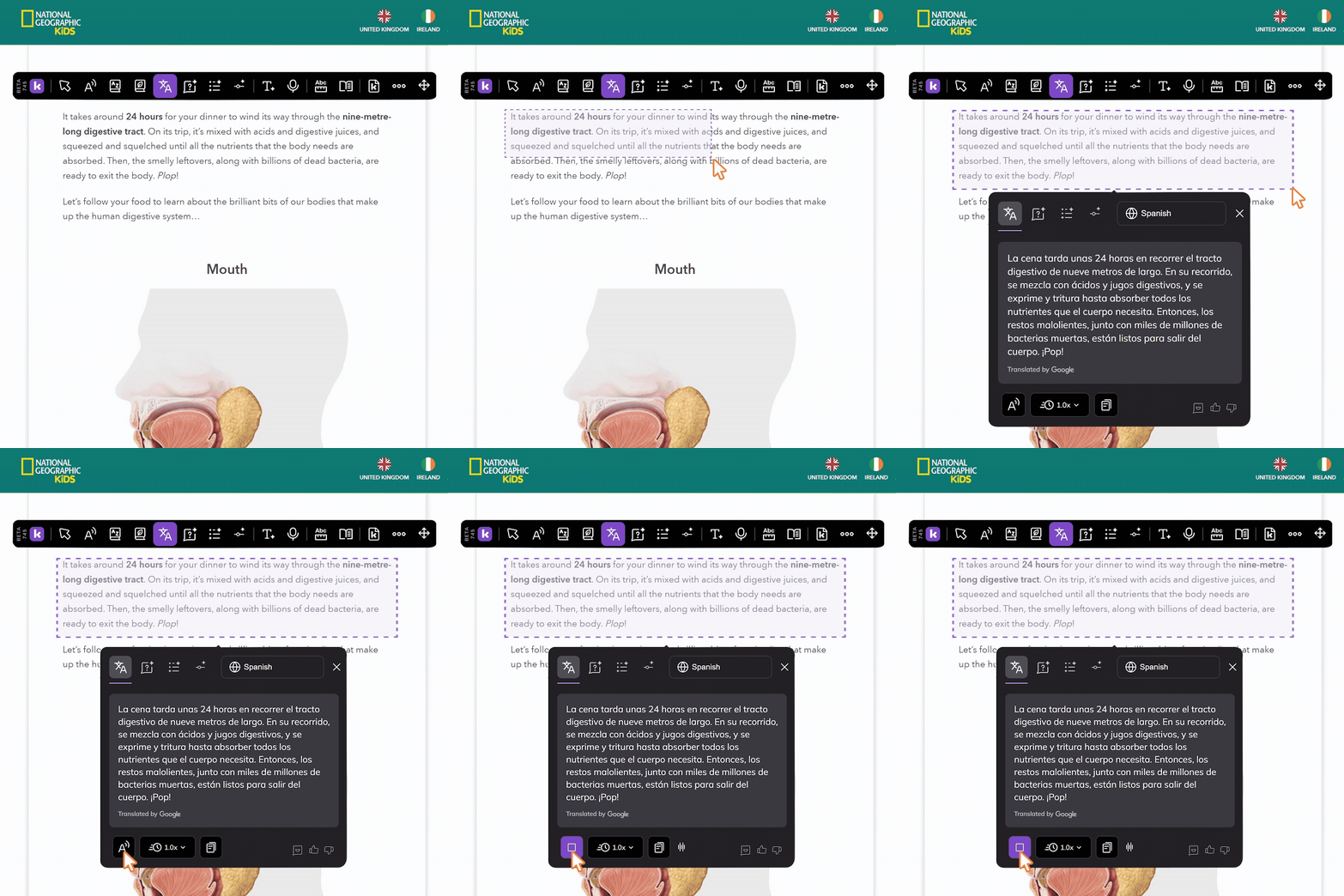
How to use the Translate tool
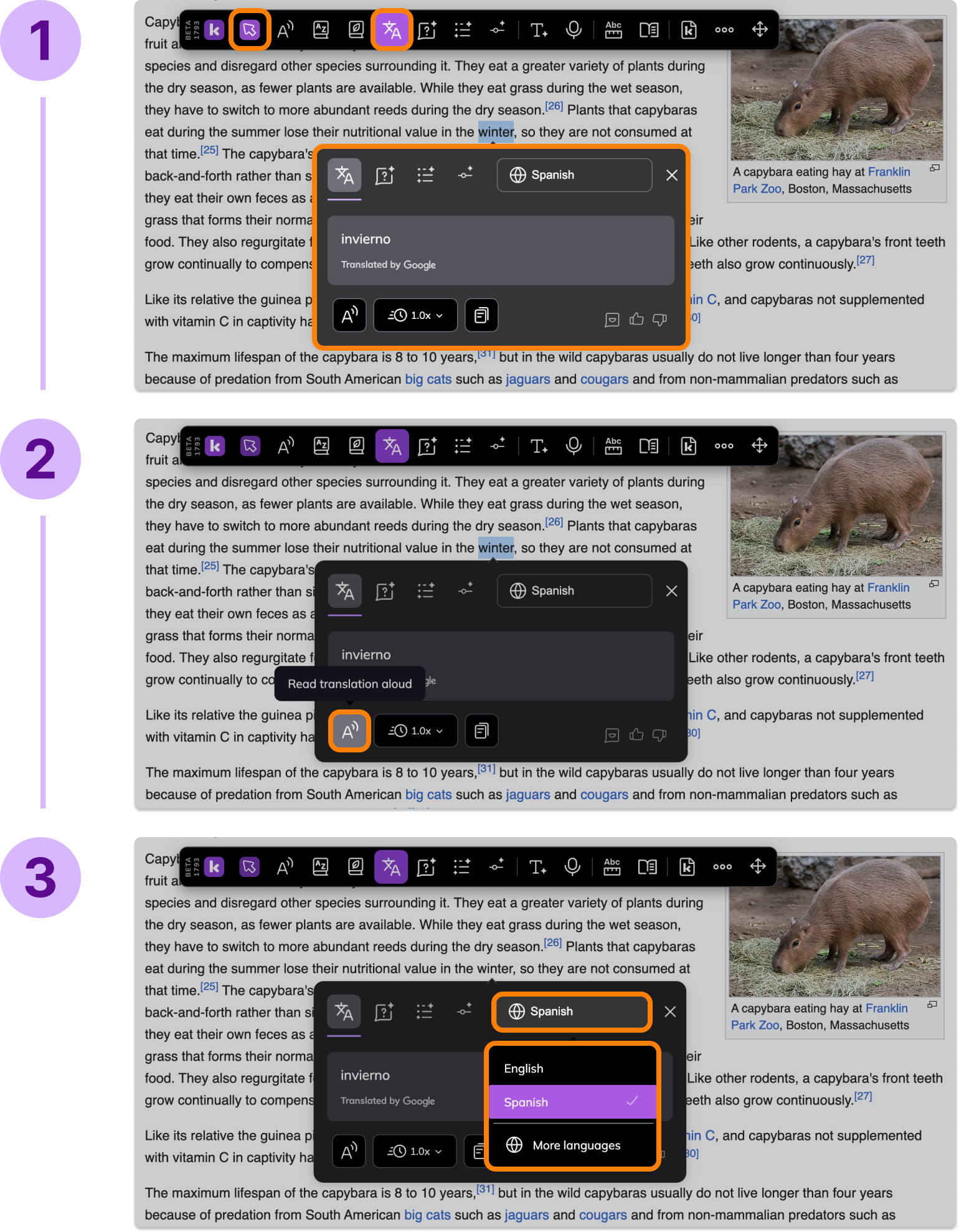
Use Word Selection or Area Selection mode to select the text you want to translate. Click on the Translate feature to open the Translate modal.
Note: Default Select mode does not enable Translate
The translated text will appear automatically in the selected language.
Select the Translate languages button to choose a preferred language, or select More languages to open the settings modal to search for more languages.
Other Translate options
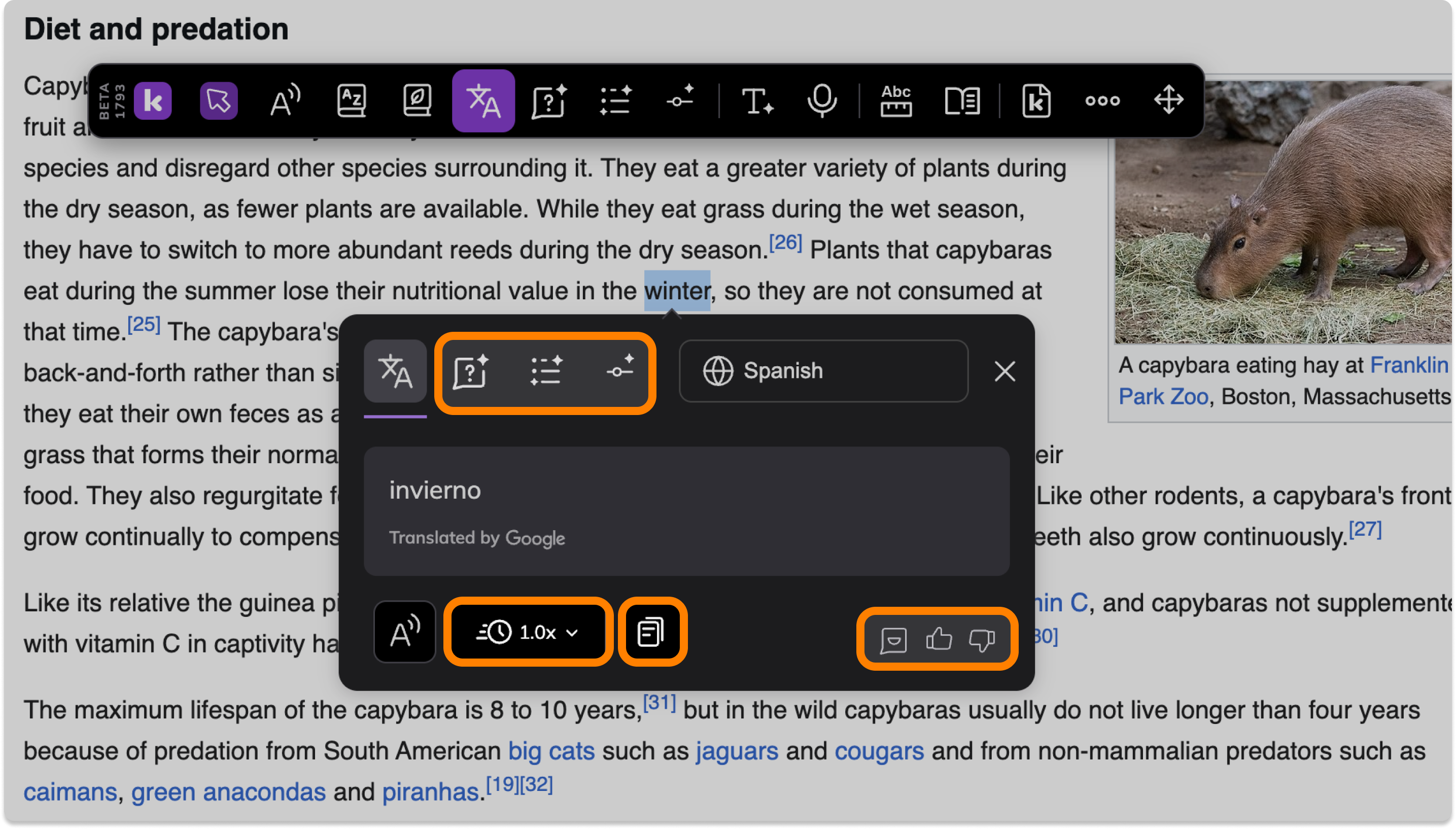
From this modal, you can:
Adjust the playback speed (between 0.1x and 2.0x)
Access other Understand tools (Explain, Summarize, Adjust)
Copy the translated text to use across the web
Share feedback directly with the Kami team
Support and Feedback
If you need further assistance, don't hesitate to get in touch with us at support@kamiapp.com or book training with one of our Teacher Success Champions: https://www.kamiapp.com/training
We are constantly improving our features. You can always share your feedback on Companion directly by clicking the Submit feedback button within the 3-dot (⋯) menu on the toolbar.