

What is the Predictive Text tool?
Predictive Text in Companion supports students and educators by suggesting words while typing in text fields across supported websites. This feature helps improve spelling accuracy, increase writing efficiency, and support learners who benefit from scaffolded writing support, including emerging writers, multilingual learners, and students with learning differences.
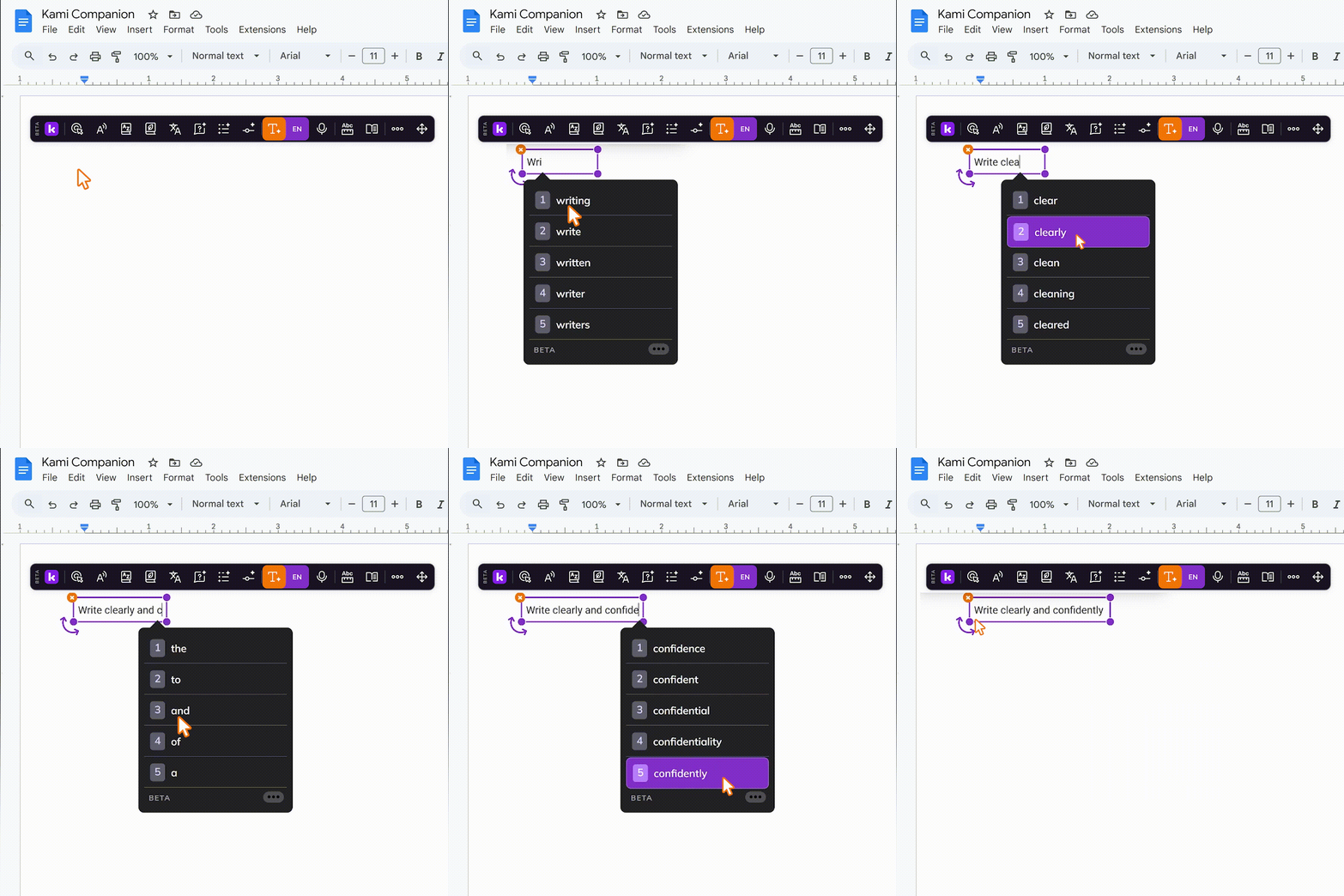
How to use the Predictive Text tool
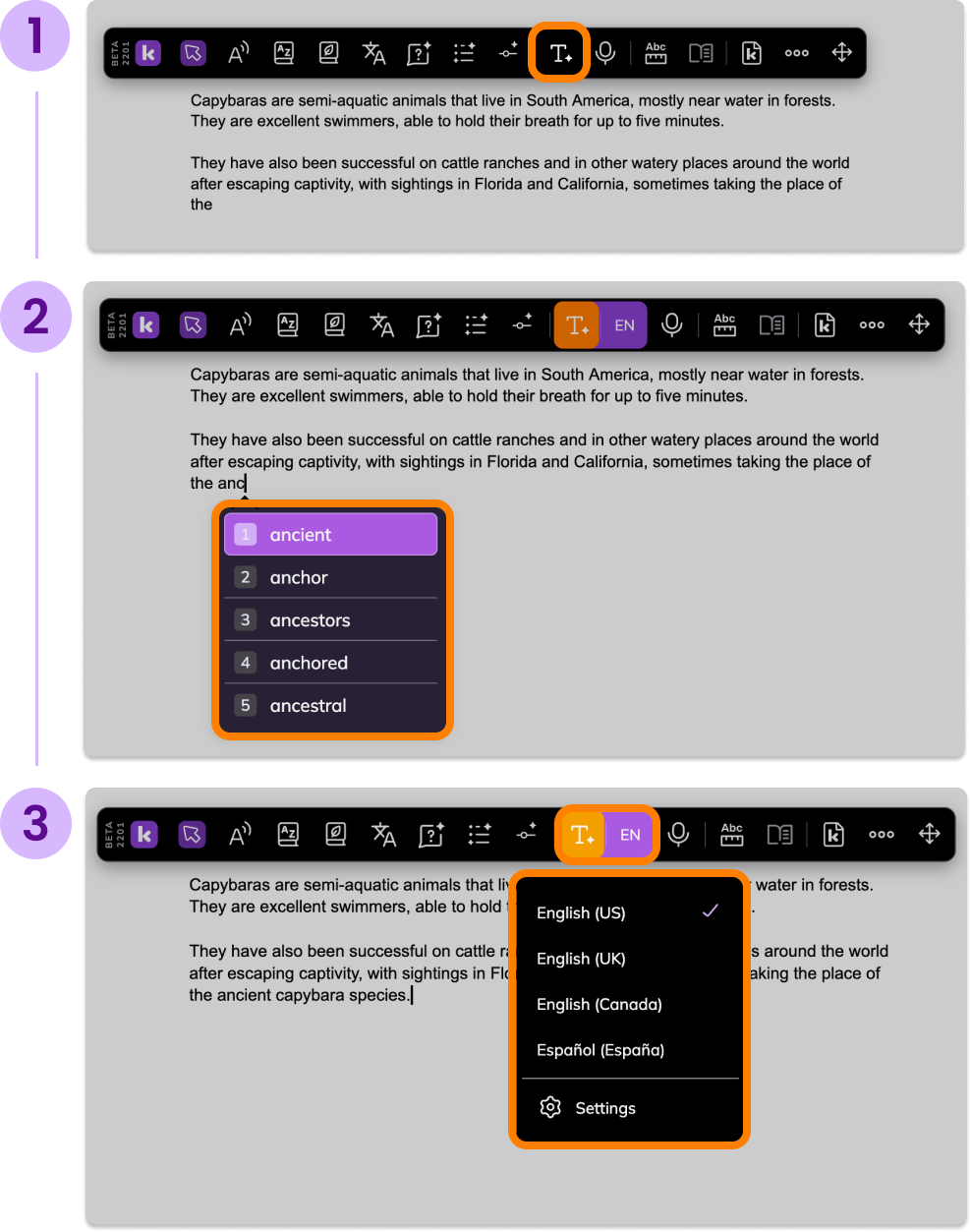
Click the Predictive Text button in the Kami Companion toolbar. When enabled, you will see word suggestions appear as you type in supported text boxes.
Select any text box on the webpage and begin typing. Word suggestions will appear as you type. You can:
Click a suggested word to insert it
Use your keyboard to select suggestions if number labels are enabled
Click the language button to open the Predictive Text languages menu. From here, you can choose a language or open the Settings modal.
Other Predictive Text options
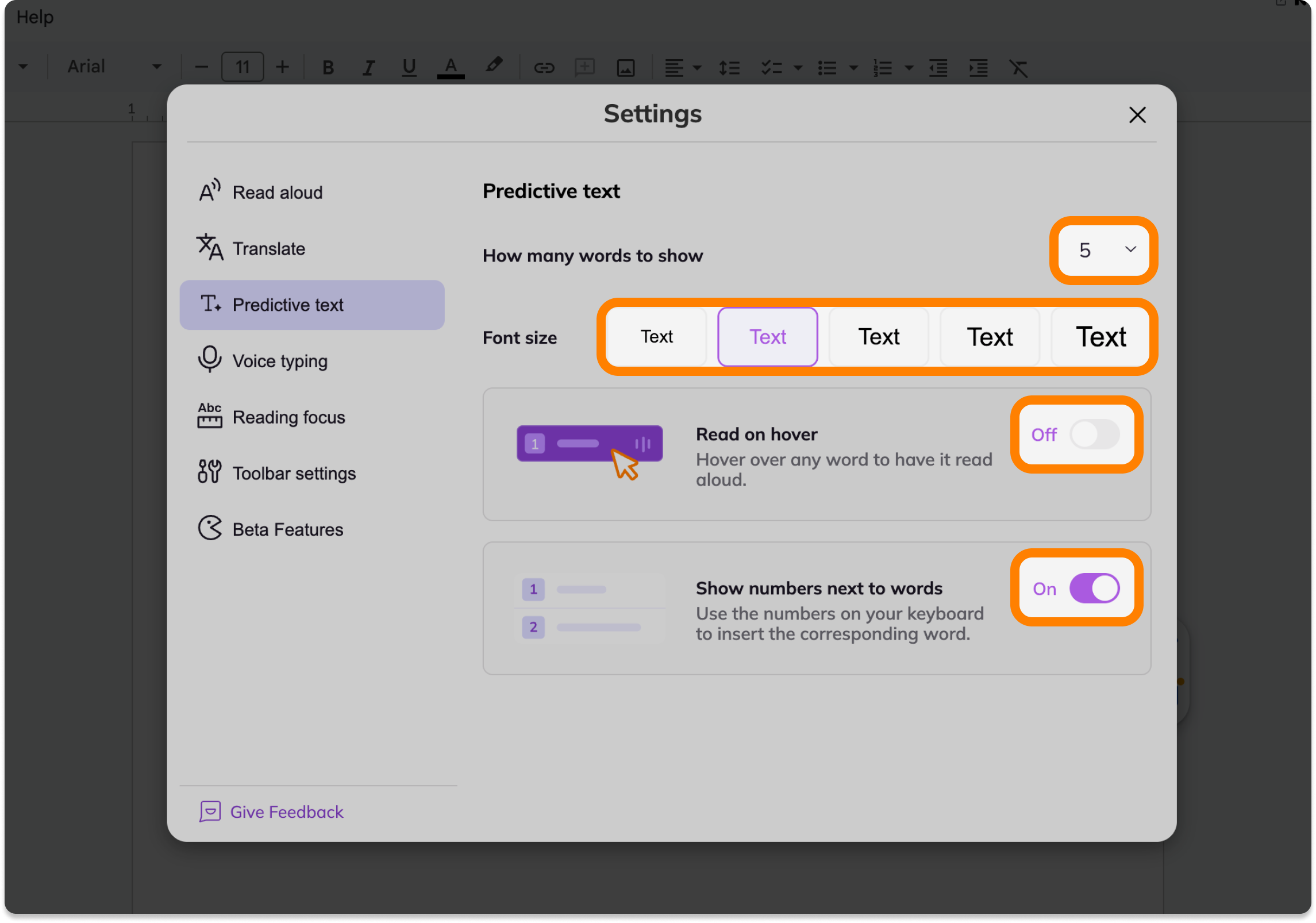
From this modal, you can:
Adjust the number of suggested words to be displayed as you type.
Change the font size of the suggested words for better visibility.
Toggle on/off the Read on hover feature. When enabled, hovering over a suggested word will read it aloud to support comprehension and word recognition.
Toggle on/off the Show numbers next to words feature. When enabled, numbers will be displayed next to suggestions so that you can easily insert words using the number keys on your keyboard.