

Kami Companion has three selection modes: Default, Word, and Area selection. Each mode is useful for different websites and content.
 Default Select
Highlight embedded text with your mouse cursor.
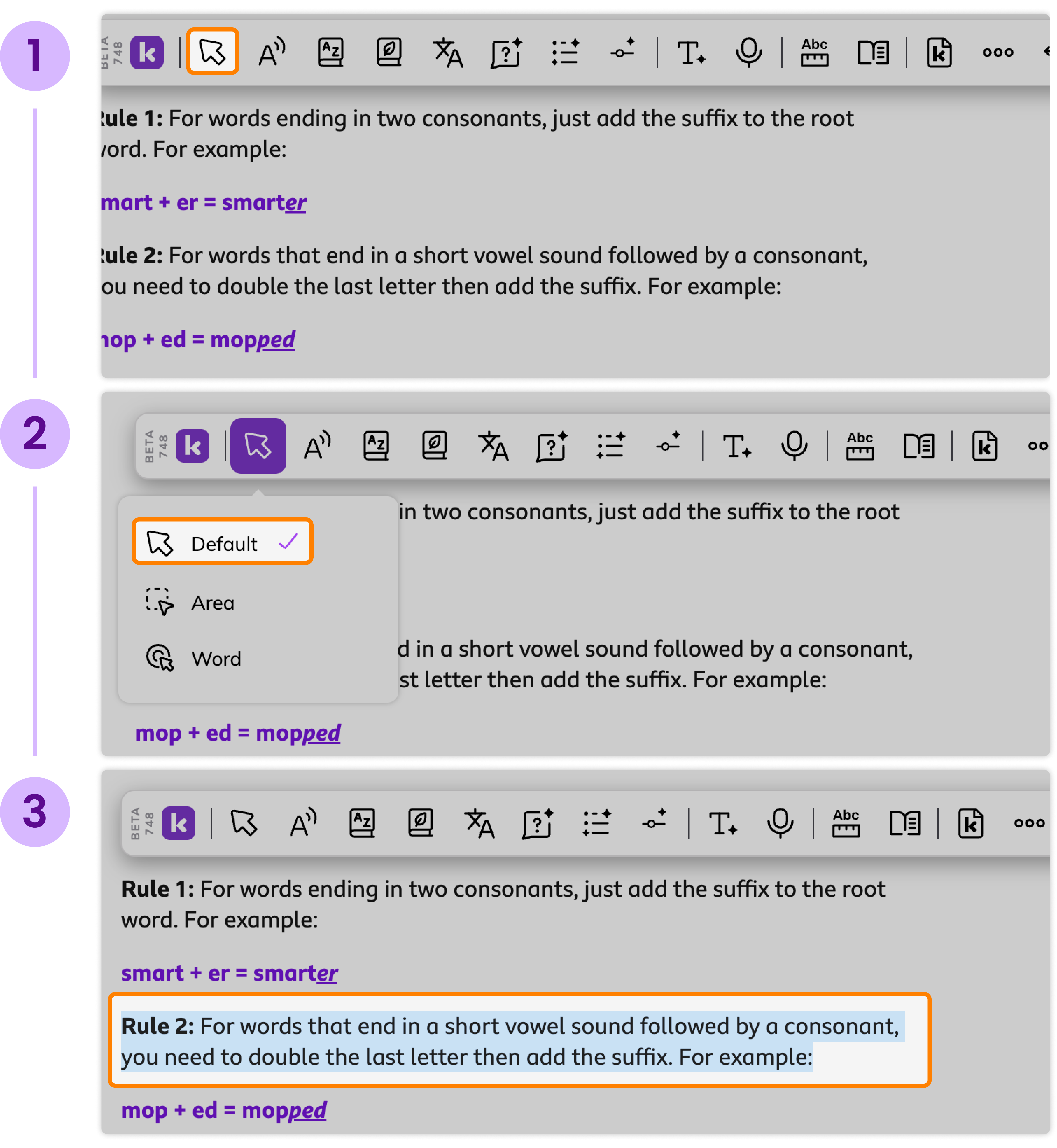
How to use Default Select
1
Use the Select button
Click the "Select" button to show the different Modes
2
Select a Mode
Choose the "Default" option from the dropdown
3
Highlight embedded text
Click and drag your mouse cursor across the group of text you'd like to select
 Area Select
Select a block of text or images by dragging your mouse cursor along an area.
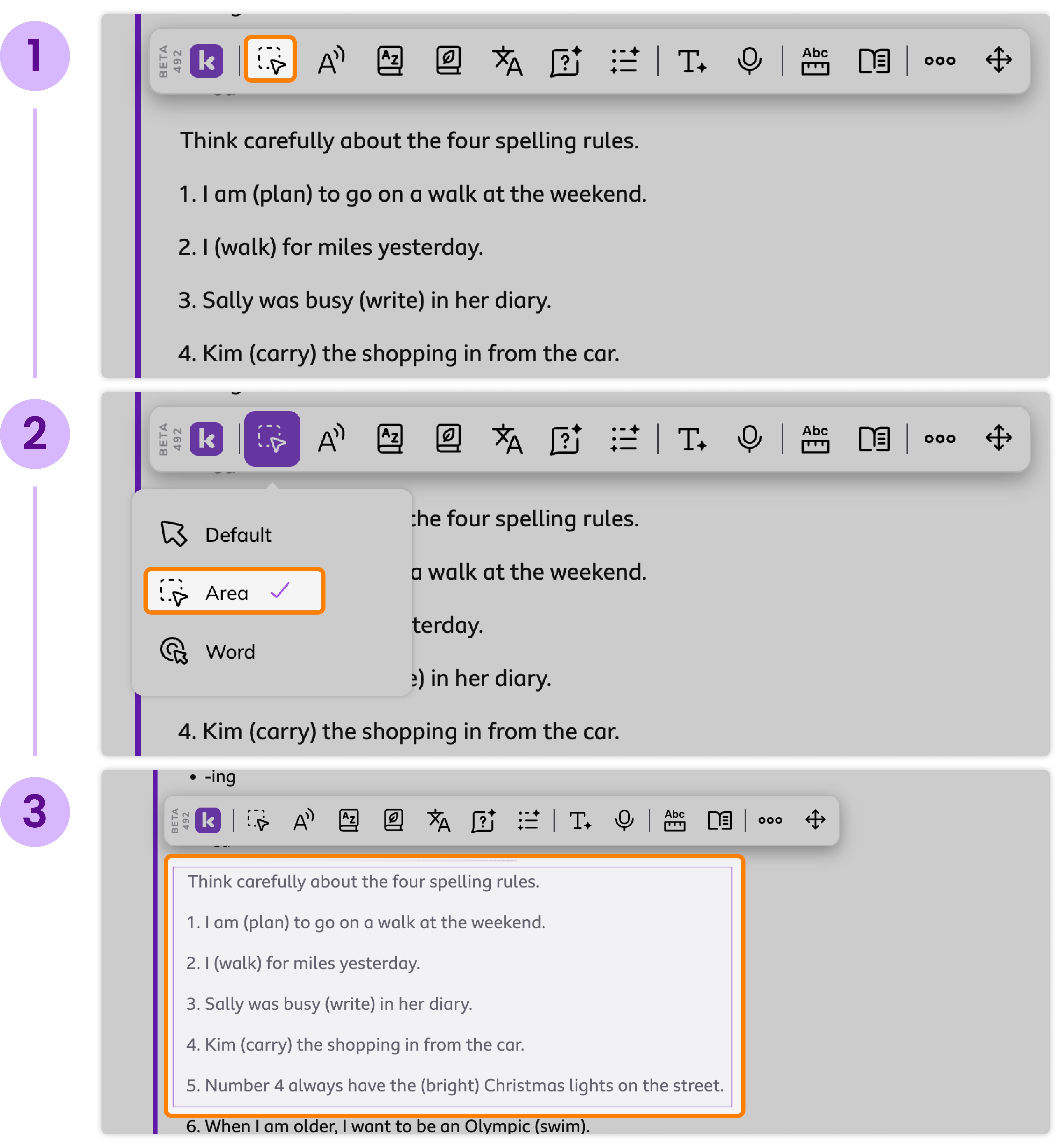
How to use Area Select
1
Use the Select button
Click the "Select" button to show different Modes.
2
Select a Mode
Choose the "Area" option from the dropdown.
3
Highlight a section of the page
Click and drag the area box across the content you'd like to highlight.
 Word Select
Highlight a single word from embedded text with your mouse cursor.
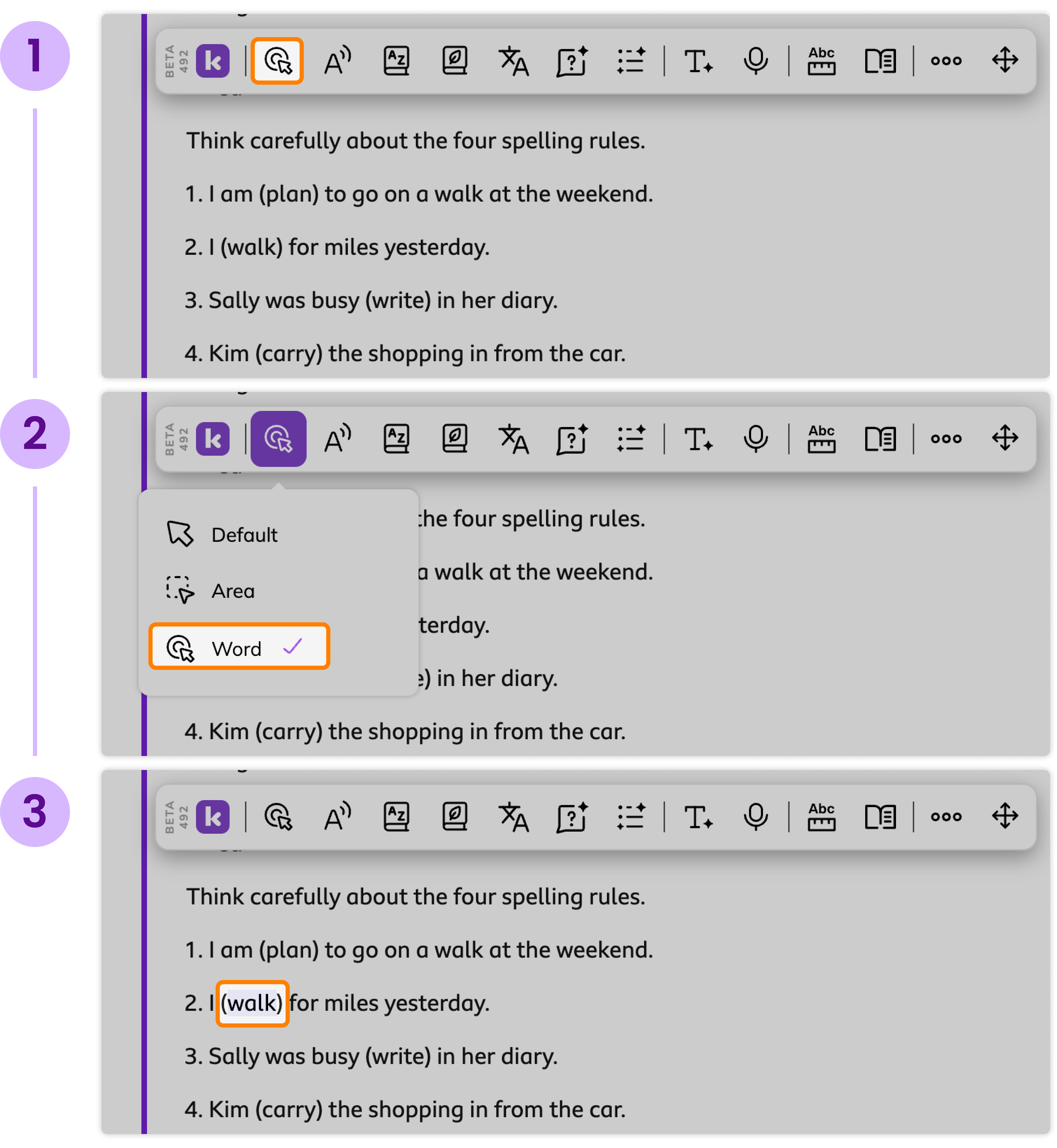
How to use Word Select
1
Use the Select button
Click the "Select" button to show different Modes.
2
Select a Mode
Choose the "Word" option from the dropdown.
3
Highlight a word
Click any word on the page to highlight.
Support and Feedback
If you need further assistance, don't hesitate to get in touch with us at support@kamiapp.com or book training with one of our Teacher Success Champions: https://www.kamiapp.com/training
We are constantly improving our features. You can always share your feedback on Companion directly by clicking the “Submit feedback” button within the 3-dot (⋯) menu on the toolbar.