

What is the Settings menu?
The Settings menu in Companion lets you personalize its appearance and behavior. From this menu, you can choose how Companion looks, how large it appears, and when it shows up as you browse the web. These settings help ensure Companion is accessible, comfortable, and supportive without being distracting.
How to access Settings
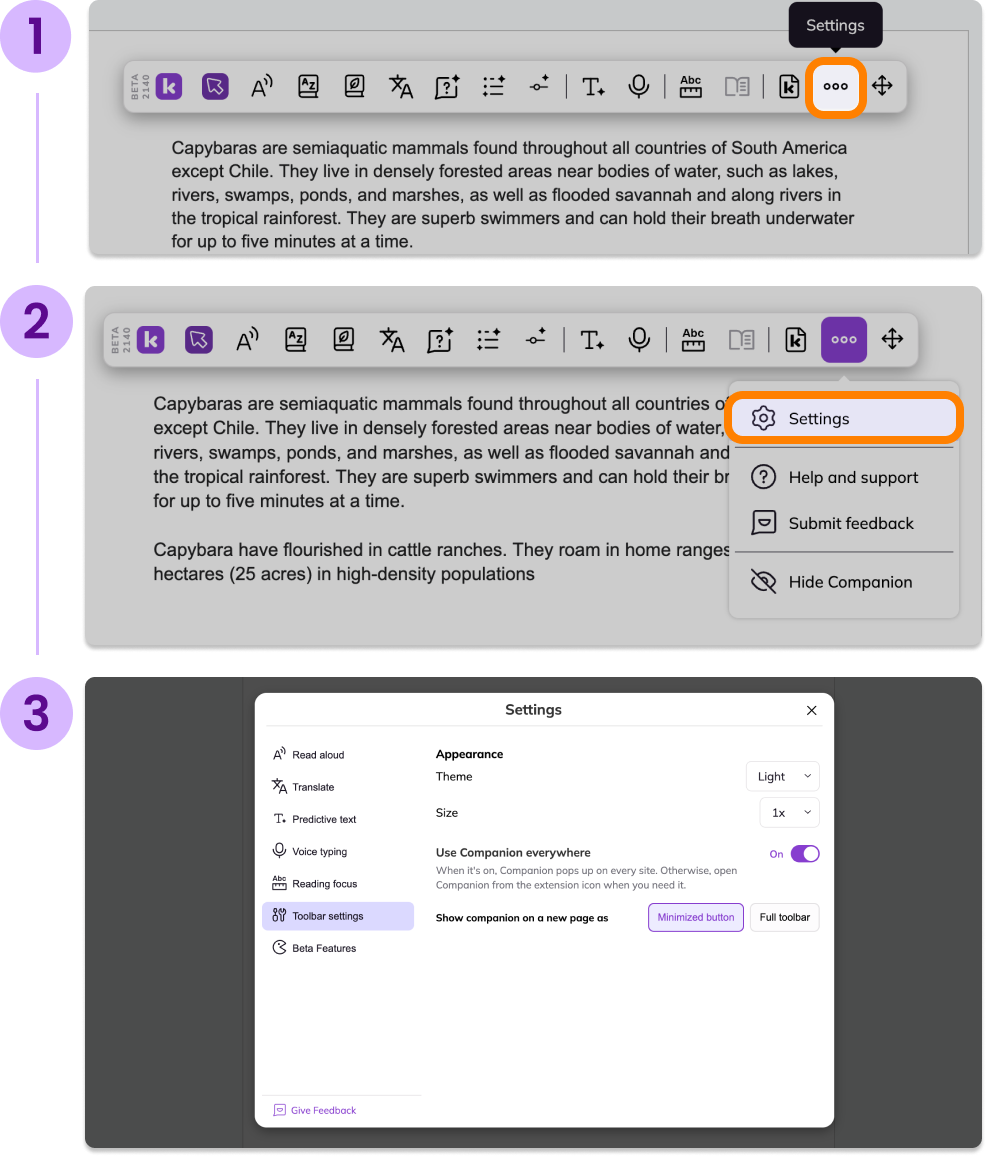
On the far-right end of the Companion toolbar, select the Settings (⋯) button.
Select Settings at the top of the drop-down list.
Choose the setting you would like to adjust from the menu, then make the desired changes.
Appearance Settings
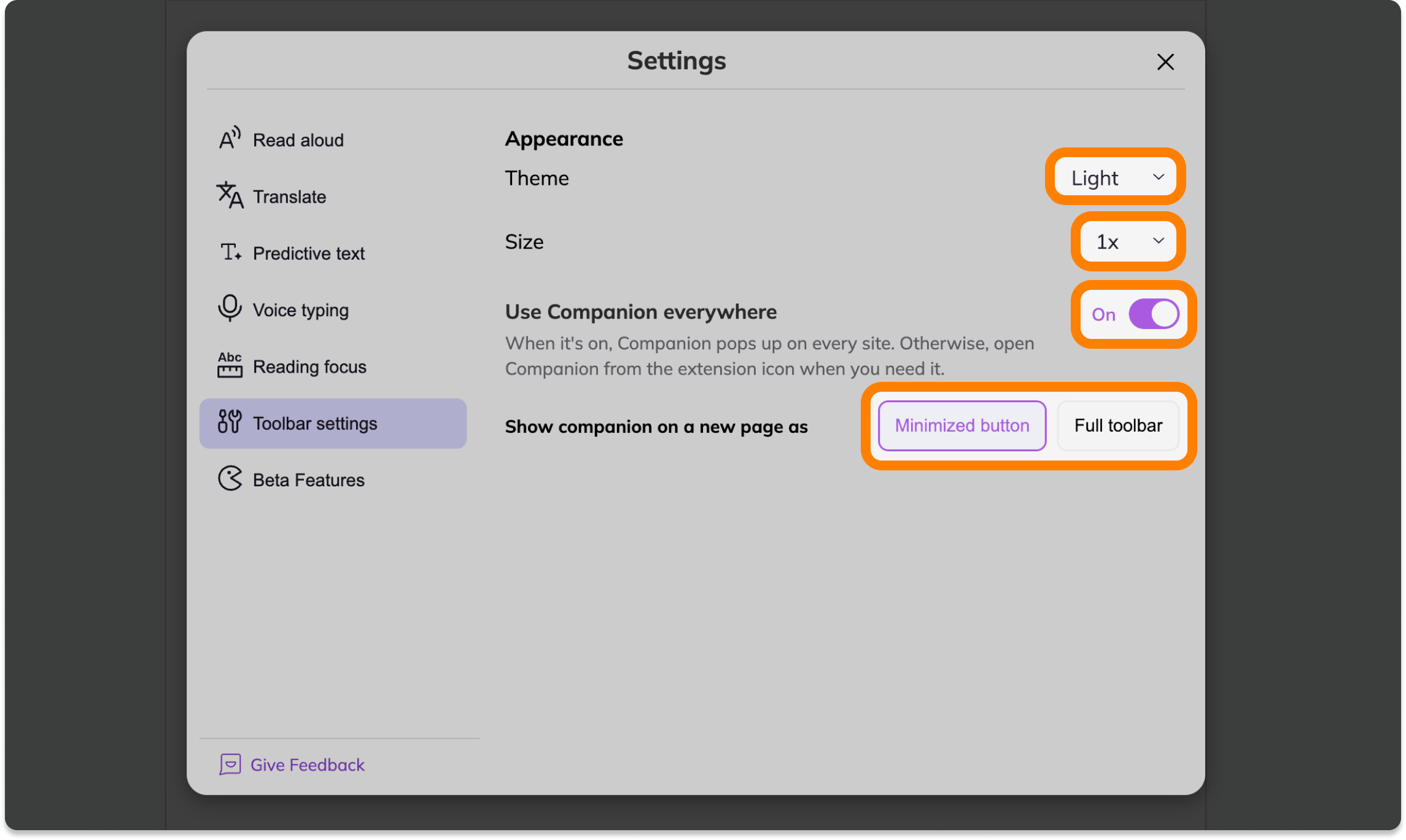
Theme
Choose between Light or Dark Theme to match your visual preference or reduce eye strain.
Size
Adjust the Size of the Companion interface to 1x, 2x, or 3x for improved readability and accessibility.
Use Companion everywhere
When Use Companion everywhere is toggled on, Companion will automatically appear on every webpage you visit.
If this setting is toggled off, you can open Companion only when needed by clicking the Companion extension icon.
Show Companion on a new page as
This option becomes available when Use Companion everywhere is turned on.
Minimized button
Companion appears as a small floating button that stays out of the way until you need it.

Full Toolbar
Companion opens as the full toolbar, giving you immediate access to all tools.

Why use these settings?
Customizing your Companion settings helps you
Reduce visual distractions while staying focused.
Improve readability and comfort.
Ensure learning supports are always available when needed.
Create a more personalized and accessible experience.